.svg)


December 24, 2025
Marketing
Change Instagram Story Background Easily: A Step-by-Step Guide
.svg)


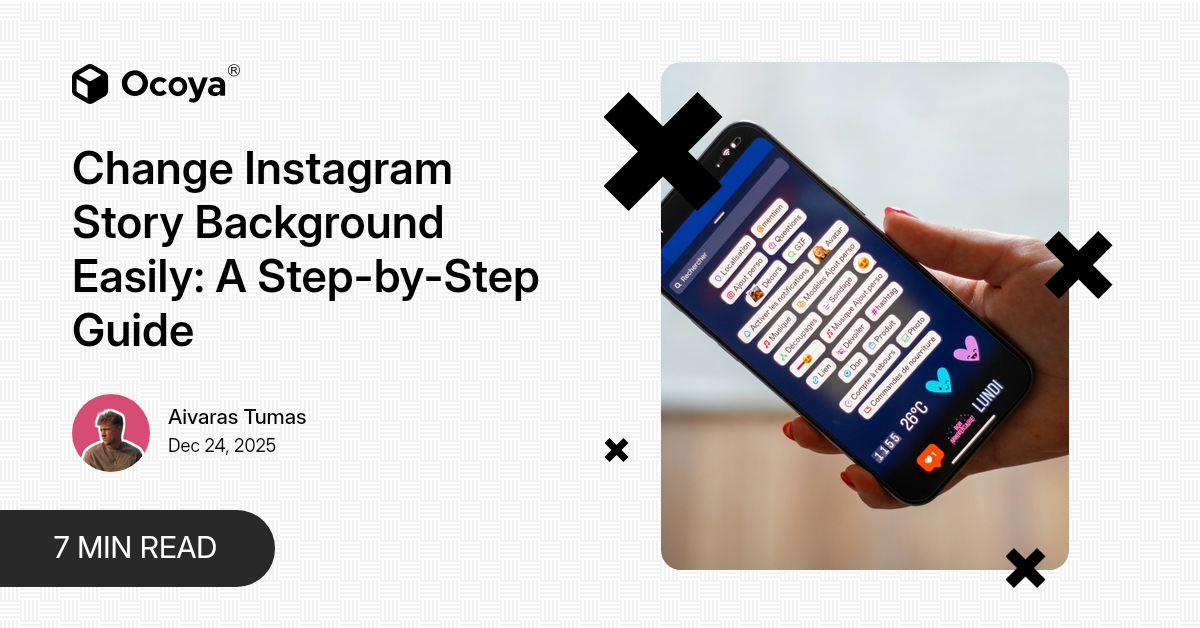
In today's digital age, social media has become an integral part of our lives, providing a platform for self-expression, connecting with others, and promoting businesses. Among the myriad of social media platforms, Instagram stands out due to its visual nature and the array of features it offers, one of them being Instagram Stories. Stories provide an excellent way to share ephemeral content with followers, keeping them engaged and allowing you to showcase moments in a captivating manner. However, to truly make your stories stand out, knowing how to change the background on an Instagram Story is vital. Whether you're a social media influencer, a business owner, or just an individual looking to add a personal flair to your content, mastering this skill can significantly enhance the visual appeal of your posts.
In this comprehensive guide, we'll walk you through the steps required to change the background on an Instagram Story, and provide you with tips and tricks to make your Stories as captivating as possible. By the end of this article, you'll have all the tools you need to create visually stunning Instagram Stories that catch the eye and keep your audience engaged.
Why Change the Background on Your Instagram Story?
Before diving into the how-tos, it's important to understand the why. Why should you consider customizing the background of your Instagram Story? Here are a few compelling reasons:
Stand Out: In a sea of content, unique and visually striking stories are more likely to grab attention. A well-designed background can make your story pop and stand out from the crowd.
Consistency: For businesses and influencers, maintaining a consistent brand aesthetic is crucial. Custom backgrounds can help ensure your stories align with your overall branding and visual style.
Engagement: Visually appealing stories are more likely to be viewed, shared, and engaged with. By putting in the effort to create captivating backgrounds, you can boost your story's engagement metrics.
Creativity: Changing the background allows you to flex your creative muscles. Whether you're an artist, designer, or just someone who enjoys expressing themselves, this feature enables you to create stories that reflect your personality or artistic vision.
Getting Started
Before you can change the background on your Instagram Story, you'll need to have the app installed on your mobile device and be logged into your account. Once you have that sorted, it's time to dive into the process of customizing your story's background.
Step-by-Step Guide to Changing the Background on Instagram Story
Step 1: Open the Instagram App
Start by opening the Instagram app on your mobile device. Once logged in, you'll be directed to your main feed where you can see posts from people you follow. On the top left of the screen, you'll see your profile picture with a "+" sign on it, indicating where you can add a Story. Tap on your profile picture to get started.
Step 2: Create a New Story
Once you've tapped your profile picture, you'll be taken to the Stories camera. Here, you can either take a new photo or video, or choose one from your camera roll. To select something from your camera roll, swipe up on the screen and browse through your gallery to pick the desired photo or video.
Step 3: Access the Drawing Tool
To change the background, you'll need to use Instagram's built-in drawing tool. After selecting your photo or video, tap the three-dot menu icon on the top right corner of the screen. From the drop-down menu, choose "Draw." This will bring up a menu of drawing tools at the top of the screen.
Step 4: Choose Your Background Color
Next, select a color for your background. You can do this by tapping one of the color options at the bottom of the screen. If you don't see a color you like, long-press any of the available colors to bring up the color slider, which allows for a more precise selection.
Step 5: Create the Background
With your color selected, tap and hold anywhere on the screen until the entire screen fills with the chosen color. You've now created a solid color background for your story. You can use the eraser tool if you'd like to reveal parts of the underlying photo or video, creating a masked effect.
Step 6: Add Text, Stickers, and More
Now, you can add text, stickers, and other elements to your story. Tap the "Aa" icon to add text, or the sticker icon to browse through Instagram's collection of stickers, GIFs, and more. Customize your story to your liking, ensuring it aligns with your aesthetic and message.
Step 7: Publish Your Story
Once you're satisfied with your customized story, tap the "Your Story" button at the bottom of the screen to publish it. Your followers will now be able to view and engage with your uniquely designed story.
Advanced Techniques
While the steps outlined above should suffice for most basic background changes, there are several advanced techniques you can use to take your Instagram Stories to the next level.
Gradient Backgrounds
Instead of a solid color, you can create a gradient background for a more dynamic look. To do this, you'll need a third-party app like Photoshop or Canva. Create a gradient in the app, save it to your photo gallery, and then import it into your Instagram Story. From there, you can add text and other elements as described above.
Image Overlays
If you want to layer multiple images, you can do so by creating a collage or overlay in a photo editing app. Once you've created your layered image, import it into your Instagram Story and continue customizing it with text, stickers, and more.
Custom Templates
For a polished, professional look, consider using custom templates. Many graphic design tools, such as Canva or Adobe Spark, offer pre-made Instagram Story templates that you can customize to suit your needs. These templates often come with built-in text placeholders, stylish backgrounds, and other design elements that can make creating stunning stories a breeze.
Tips for Creating Visually Stunning Stories
While knowing how to change the background on Instagram Stories is essential, creating truly engaging content involves more than just a pretty backdrop. Here are some additional tips to ensure your stories are as visually appealing and impactful as possible:
Use High-Quality Images and Videos: Start with high-resolution images and videos. Blurry or pixelated content can detract from the overall quality of your story.
Maintain Brand Consistency: If you're representing a brand, ensure your stories align with your brand's overall aesthetic. Use consistent colors, fonts, and design elements.
Engage with Stickers and GIFs: Instagram offers a wide range of stickers, GIFs, and interactive elements like polls and questions. Use these to make your stories more engaging and interactive.
Keep Text Clear and Readable: When adding text, make sure it's easy to read. Use contrasting colors and avoid overcrowding the screen with too much text.
Tell a Story: Instead of random posts, consider creating a narrative or story arc with your content. This can make your stories more engaging and memorable.
Using Ocoya for Instagram Story Management
Creating and managing Instagram Stories can be time-consuming, especially if you're juggling multiple social media platforms. This is where Ocoya comes into play. Ocoya is an all-in-one AI-driven social media tool designed to streamline the content creation and management process.
With Ocoya, you can:
Automated Content Creation: Use Ocoya's AI to generate compelling content ideas and templates, ensuring you always have fresh and engaging stories to share.
Scheduling and Publishing: Plan and schedule your Instagram Stories in advance, freeing up your time and ensuring a consistent posting schedule.
Analytics and Insights: Track the performance of your stories with detailed analytics, helping you understand what resonates with your audience and refine your strategy accordingly.
By integrating Ocoya into your social media strategy, you can efficiently manage your Instagram Stories and other social media content, allowing you to focus on what matters most—connecting with your audience and growing your presence.
Ready to take your Instagram Stories to the next level? Sign up for a free trial of Ocoya today and start creating visually stunning, engaging content with ease.
Key Takeaways
Customization Matters: Changing the background of your Instagram Stories can significantly enhance their visual appeal and engagement.
Steps to Change Background: Follow the step-by-step guide to easily change the background on your Instagram Story using built-in tools or external apps.
Advanced Techniques: Experiment with gradient backgrounds, image overlays, and custom templates for a professional look.
Utilize Ocoya: Streamline your content creation and management process with Ocoya, an AI-driven social media tool. Sign up for a free trial and elevate your Instagram Stories effortlessly.

Continue Reading
The latest handpicked blog articles.